Fluent makes every pose you own work on every Genesis figure you own.
Turn it on once and forget it. Apply a Genesis 9 pose to a Genesis 8 figure, a
Genesis 3 pose to a Genesis 9 figure, or anything in between — the pose lands
correctly, on the figure you applied it to. No dialog, no menu, no picking the
file twice. You keep working exactly the way you already do.
KEY FEATURES -----
- One Toggle, Then Nothing
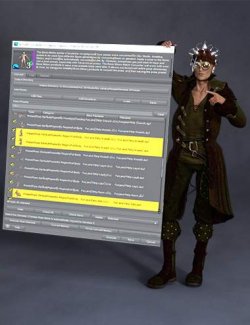
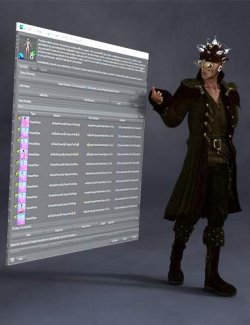
Fluent adds a single checkable entry, Edit > Fluent mode, doubled by a
two-state button in the Standard toolbar and by its own "Fluent" toolbar,
one right-click away from the toolbar area. Switch it on and it stays on
between sessions. There is no pane, no dialog, and nothing to configure —
when it is working, you do not notice it at all.
- Every Direction, One Product
Genesis 3, Genesis 8, Genesis 8.1 and Genesis 9, in both directions, all ten
combinations. Not one product per direction.
- Applies to the Figure You Selected
You browse your library and double-click a pose exactly as you always have.
Fluent recognizes which generation the pose was made for, compares it with
the figure receiving it, and corrects the pose in place. If they already
match, it does strictly nothing.
- Real Rig Conversion, Not a Copy
Genesis 3 and Genesis 8 share all 170 bone names but sit 45 degrees apart
along the whole arm chain (T-pose against A-pose), so copying values gives a
broken figure. Genesis 8 and Genesis 9 share only 3 names. Fluent converts
through the rest orientation of each bone, read from the figure itself, so
the result is right for your character and its morphs — not just for the
base figure.
- Bend and Twist Handled Together
Genesis 8 carries a limb's twist on a dedicated bone and forbids it on the
bending bone; Genesis 9 splits it differently again. Converting channel by
channel loses that rotation silently. Fluent recomposes each limb as a whole,
so the twist survives the trip.
- Pose Controllers Included
The pCTRL and body_ctrl sliders that shape hands, arms and torso are
translated between the two naming schemes, not dropped. A pose that closes a
hand still closes it after conversion.
- Partial Poses Stay Partial
Nearly half of the poses in a typical library touch 30 bones or fewer — a
hand pose, an expression, a single arm. Fluent only writes the channels the
file actually contains, so applying a leg pose never wipes the hand pose you
already had.
- Every Pose Format Your Library Uses
Ordinary pose presets, hierarchical poses (H.Pose), and poses shipped inside
wearable or property presets — a measurable slice of any real library, and
formats that would otherwise do nothing at all on another generation. Props
that come with such a pose are re-attached to the equivalent bone.
- One Undo
A converted pose is one entry in the undo stack, not two. Ctrl+Z once and
you are back where you were.
- Works Alongside PoseGuard
If you also use PoseGuard, its protection applies to a converted pose exactly
as it does to a native one. See the dedicated section below.
- It Says What It Did
Hover the toolbar button and the tooltip tells you what happened to the last
pose. Everything else — every bone converted, every channel a figure refused
— goes to the Daz Studio log, so a support question can be answered from the
log alone.
- Silence When It Cannot Be Sure
If Fluent cannot establish which generation a pose was made for, it does not
guess: it lets Daz Studio apply the pose unchanged and says so. A wrong
conversion is worse than none.
WHO IT IS FOR -----
Anyone with a pose library spanning more than one Genesis generation. If you
have ever bought the same pose set twice, or left a Genesis 3 pack unused since
moving to Genesis 9, this is what Fluent is for.
USING FLUENT WITH POSEGUARD -----
If you own PoseGuard, the two plugins are designed to work together, and there
is nothing to set up. Install both, arm PoseGuard as you normally would, and
apply your poses as usual.
What that means in practice:
- Everything PoseGuard protects on a native pose, it protects on a converted
one. The conversion happens before PoseGuard has its say, so the guard always
has the last word — in Light mode as in Full mode.
- Fluent never forces a value past a lock. A property locked in Daz Studio,
whether you locked it by hand or PoseGuard locked it for you, is left exactly
as it is, and Fluent reports it in the log rather than pretending otherwise.
- A converted pose is a single undo entry, named after the pose file, so
PoseGuard recognises it as the pose load it is.
The order is simply the one you would want: Daz Studio applies the pose, Fluent
converts it for the figure receiving it, then PoseGuard restores what you asked
it to keep.
Neither plugin requires the other. Fluent works on its own, and so does
PoseGuard.
REQUIREMENTS -----
- Daz Studio 6 (Qt6-based release), or Daz Studio 4.5 or later.
- Windows 64-bit.
- Both plugin files are included in this package; install the one matching
your Daz Studio version, or both if you use both.
SCOPE AND LIMITATIONS -----
Stated plainly, because knowing what a tool does not do is part of trusting
what it does.
- Body rotations, and the pose controllers that drive them. Facial expression
rigs are left untouched: the expression naming schemes of Genesis 8 and
Genesis 9 have nothing in common, and a mechanical translation would produce
a distorted face rather than the intended one.
- Root and hip translation are left exactly as Daz Studio applies them.
- Some channels cannot receive a converted value because the target rig locks
them — toe joints, for instance, differ between generations. Fluent reports
each one in the log rather than pretending the pose transferred whole.
- A prop shipped inside a pose file is re-attached to the equivalent bone, but
its fine placement is not converted: expect a small offset if the pose has a
figure holding an object. The figure itself is posed correctly.
- Genesis 1 and Genesis 2 are outside the supported range.
FAQ -----
Q: Do I have to do anything when applying a pose?
A: No. Browse and double-click as usual. Fluent works on the pose Daz Studio
has just applied, on the figure you had selected.
Q: What happens if the pose already matches the figure's generation?
A: Nothing at all. Fluent stays out of the way, and Genesis 8 and Genesis 8.1
count as the same generation — their rigs are identical.
Q: Will it slow Daz Studio down?
A: A conversion is measured in milliseconds on Daz Studio 6, and under a
second in the heaviest case on Daz Studio 4. Loading the pose itself takes
longer than converting it.
Q: Can I turn it off for one pose?
A: Yes — the toggle is a standard Daz Studio action, so you can also assign it
a keyboard shortcut from the Customize dialog and flip it as you work.
Q: The pose landed but one detail did not transfer. Why?
A: Open the Daz Studio log (Help > Troubleshooting > View Log File) and look
for the lines starting with "Fluent:". Every bone, controller and channel
that did not make the trip is listed there, with the value it wanted and
the value it got.
CHANGELOG -------
1.0.0 - 2026-08-26
- Initial release.