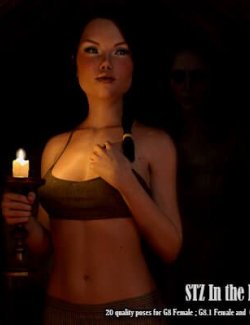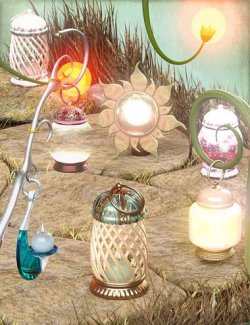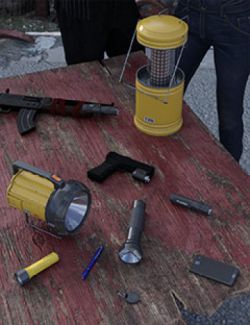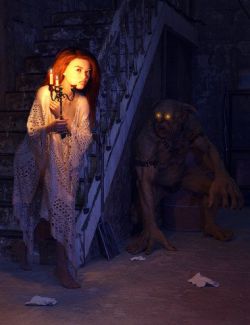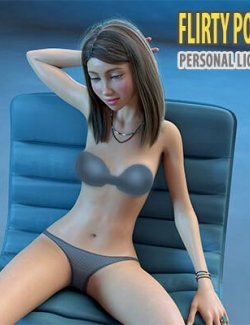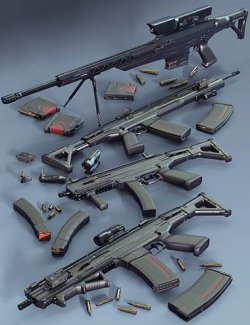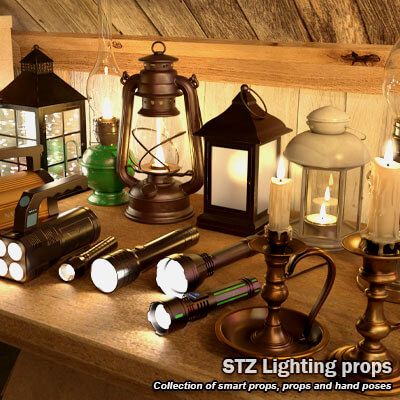
"STZ Lighting props" - This is a unique collection of smart props, props and hand poses for G8 Female and G9
Please carefully read the instructions for adding props to a scene in the readme file.
Included in this Package:
18 smart props for G8 Female
18 Smart props for G9
18 hand poses for G8 Female
18 hand poses for G9
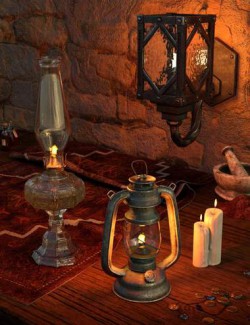
18 Lighting props
05 Candle
06 Flashlight
03 Kerosene lantern
04 Lantern
36 materials for Lighting props ( On/Off Light)
Installation Instructions:
Unzip into your D|S Content directory; make sure "use folder names" option is
checked.
------------
Usage. Read carefully! These steps is important!!!:
1. Load Genesis 8 Female by DAZ3D
2. Navigate to People\Genesis 8 female\Poses\STZ_Lighting_props\Hand_poses\left hand or right hand (Use for example a hand pose for a Candle.) double click the icon marked "Candle_01"
run Force Limits Off before to apply pose
3. Load the Candle to the scene. Select G8 Female body. Go to People\Genesis 8 Female\Poses\STZ_Lighting_props\Smart_props\left hand or right hand and double click on the icon marked "STZ_Canle_01…".
To turn on or off the lights for the props, use the materials that are included in this set.
4. Select candle 01. Go to People\Genesis 8 Female\Poses\STZ_Lighting_props\Light and double click on the icon marked "STZ_Canle_01_OFF" or "STZ_Canle_01_ON".
If you load a flashlight into the scene, the viewport may lose visibility.
This occurs because a standard spotlight (built into DAZ Studio) is loaded along with the flashlight.
If this happens, press Ctrl+L to turn on the Preview Light.
You can control the flashlight's light using two parameters on the Parameters tab: Beam_brightness and Beam_diameter.
Note: This applies only to smart props. These parameters do not work for regular props.
Important!
Flashlight lights will not render correctly if the Iray Environment Mode is set to "Sun-Sky Only" in the Render Settings.
Select any other mode instead.
Candles, kerosene lanterns and lanterns work normally in all modes.
Flashlights load with a DAZ Studio spotlight attached (this applies only to smart props).
To disable the flashlight light:
Apply the material from the "Light" folder.
Manually turn off the attached spotlight in the Scene tab
You must enable or disable the spotlight manually via the Scene tab.
To make the rays from the flashlight visible during rendering, go to
People\Genesis 8 Female\Poses\STZ_Lighting_props\Visible_rays_of_light and double click the icon marked "Visible_rays"