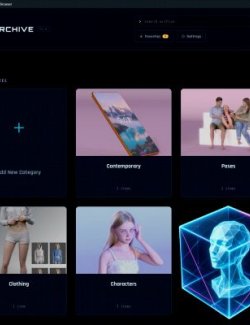
Atelier scans your wearable library, sorts every `.duf` by garment type (Tops, Bottoms, Full-Body, Outerwear, Footwear, Headwear, Gloves, Underwear, Accessories, Other), generation, gender, author, and your own tags, then lets you wear any item, or a whole tagged outfit, onto the figure you have selected with one click, all without moving, renaming, or changing a single file.,
- WHY ATELIER
It stays fast on a real library. DAZ Studio's own Content Library and Smart Content can get slow once a wearable collection grows large. Atelier is built for that case: a large library, paged and loaded on demand, so scrolling and searching stay quick no matter how big your collection grows.
Sorted by what a wearable actually is. Atelier follows each wearable to its geometry and reads the DAZ content type recorded there, so items land in the right garment-type tab (Tops, Bottoms, Full-Body, Outerwear, Footwear, Headwear, Gloves, Underwear, Accessories, Other) instead of one undifferentiated pile.
The right wearables for the figure you have. Filter by generation (Genesis 2 / 3 / 8 / 8.1 / 9), by gender, and by author. A Genesis 8 Female top no longer gets buried among Male and other-generation items. Turn on Auto and the generation filter follows whatever figure you select.
Build and reuse a wardrobe. Tag wearables with your own labels, most usefully a character's name, then filter by that tag to see the whole wardrobe at once, or wear every item under it in a single click.
See the whole outfit, not just the pieces. Switch to the Products view and Atelier groups pieces, materials, and props back into the outfit they shipped as. Wear the whole outfit onto your figure in one click, as one undo.
Filter by occasion, not just anatomy. 15 curated categories (Everyday/Casual, Athletic/Gym, Swim and Beach, Formal/Evening, Fantasy, Sci-Fi, and more) group outfits by what you would actually wear them for, seeded automatically from each product's name and refined by you as you go.
Point it at your whole library. A dedicated Folders tab lets you add and manage the folders it scans, even a full content library. Atelier finds wearables by reading each file, so it catches them wherever they live, not only in folders named "Clothes".
Strictly read-only, always. Atelier never moves, renames, or edits a single wearable file. Its catalog lives in its own database, and every tag or favorite you set is stored as an override. Your library stays exactly as you left it.
- EVERYTHING IT CAN DO
- ORGANIZE AND FIND
Point it at any folder; every .duf is scanned, followed to its geometry, and sorted by garment type: Tops, Bottoms, Full-Body, Outerwear, Footwear, Headwear, Gloves, Underwear, Accessories, Other. Re-organizing only reprocesses what changed.
Inside each garment-type tab, wearables are grouped into collapsible sections: an "All " section plus a section for each of your own tags. Sections start closed, and opening one closes the others, so you always have a clean overview.
Refresh re-scans the folders you already organized to pick up newly installed wearables, without choosing the folder again.
- PRODUCTS VIEW: SEE THE WHOLE OUTFIT
Switch the Pieces/Products toggle to Products, and Atelier groups wearables the way they were shipped: a card per outfit, collecting its pieces, its material presets, and any companion props under one roof, no tagging required.
Click a card to open its drawer: a Pieces row, a Materials row, and a Props row, each with its own small thumbnails. Double-click a piece to wear just that piece, click a material once to apply it (matching Smart Content's one-click apply), double-click a prop to load it.
"Wear whole outfit" loads and fits every piece of the product onto your selected figure in one action, one undo. Materials and props stay a single click away for changing the look afterward.
- OCCASION CATEGORIES: FILTER BY WHAT YOU WOULD WEAR IT FOR
15 curated categories group PRODUCTS by activity rather than anatomy: Everyday/Casual, Formal/Evening, Sleep and Lounge, Athletic/Gym, Running/Outdoor, Swim and Beach, Sports, Uniforms, Fantasy, Sci-Fi, Historical/Period, Lingerie/Intimate, Winter/Cold, Costume/Cosplay, and Work/Business.
Atelier seeds a starting guess for each product from its name and its pieces' names; a product that does not match any category lands in Unsorted, one click away from being sorted by you. You can always assign or correct a product's occasion by hand from its right-click menu, and your choice always wins over the automatic guess and is never overwritten by a rescan. A product can carry more than one occasion.
- MANAGE FOLDERS (THE FOLDERS TAB)
Add and manage every folder Atelier scans, from one place. Point at a single clothing folder or a whole content library; it finds wearables by reading each file, so it catches them even in folders not named "Clothes" (many third-party wearables ship that way).
Each folder shows its wearable count and status. Rescan one folder or all of them, and remove a folder from the list (keeping or clearing its wearables, your choice). A large scan runs without freezing the pane and can be stopped, with a clear warning when a folder is very big.
FILTERS: GENERATION, GENDER, AUTHOR
Generation filter: Genesis 2 / 3 / 8 / 8.1 / 9, with an Auto option that matches the filter to the figure you have selected.
Gender filter (All, Female, Male, Unknown), because a wearable built for Genesis 8 Female often does not fit Genesis 8 Male correctly. Gender is detected from the file name and path, and refined from the DAZ database when you run Sync with DAZ.
Author filter, read from each wearable's own metadata, with a count next to each name. Pick one to see only that author's wearables.
- SEARCH
Search by wearable name or tag to filter the visible grids. With "Search as I type" on, the search runs after a short pause once you have typed at least three characters, so a single letter never scans the whole library. Turn it off and search on demand with the button or Enter.
- WEAR A WEARABLE, OR A WHOLE OUTFIT
Double-click any wearable to load and fit it onto the selected figure; DAZ Studio's own auto-fit and conforming take it from there. Wearing an item is grouped as one undo, so Ctrl+Z reverts it in a single step.
Tag every item that belongs to an outfit or a character's look with the same tag, then right-click that tag's section header and choose "Wear all in " to load and fit the whole outfit onto the selected figure at once, also as one undo.
- FIND AND CLEAN DUPLICATES (THE DUPLICATES TAB)
Scan for exact duplicate wearables (the same wearable, byte-for-byte content), grouped together.
Keep one and hide the rest in a single action per group.
Hidden wearables leave every list but are never deleted; a hidden-items view brings any of them back. You can also hide or unhide a single wearable from its own right-click menu, in any tab. Nothing is ever removed from disk.
- CATEGORIES / TAGS
Tag wearables with your own labels. The most useful case is a character's name: tag every wearable that belongs to that character's wardrobe or a specific outfit, then filter or wear by that tag to reuse it at will. The search box matches tag names, so a character's tag pulls up its wearables. Each wearable tile shows its tags as small chips.
Tag one wearable from its right-click menu, or use Select mode to multi-select wearables and add or remove a tag on all of them at once.
Sync with DAZ imports the categories you already set in the DAZ content database onto your wearables, so you keep your existing organization. It reads the DAZ database only; it never writes to it.
- FAVORITES AND QUICK ACCESS
Favorites, a Recently used list of the wearables you wore most recently, and a burgundy highlight on the very last wearable you wore.
Right-click any wearable for the full menu: Open containing folder, Add or remove from favorites, Remove from recently used, assign or remove a Category/Tag, Hide from library or Unhide, and a simple reviewed flag to track items you have already double-checked.
Large preview toggle and a configurable page size.
- READ-ONLY, GUARANTEED
Atelier only reads your wearables and the DAZ database. It never moves, renames, or modifies any file. Its own catalog is kept separately.
- COMPATIBILITY
DAZ Studio 4 and 6, Windows 64-bit. Atelier is a native C++ plugin with a real dockable pane.
It runs in both DAZ Studio 4 and the new DAZ Studio 6, which most third-party plugins do not yet, so your library stays usable across both.
It reads wearables made for Genesis 2, 3, 8, 8.1, and 9, and works with other figures too.
Notes:
1. Start small, then point it at your full library
Getting started: try a small folder first
Before you point Atelier at your whole library, organize a small subfolder that is inside your real wearable folder (a couple dozen items). In a few seconds you will see how Atelier scans, sorts, and displays your wearables, and how the garment-type tabs, the filters, wearing an item onto your figure, and the Duplicates tools work. When you are comfortable, organize the full folder: the test items are simply re-scanned as part of it, with nothing left over.
Prefer a completely fresh start? Close DAZ Studio and delete Atelier's catalog file at %USERPROFILE%\.clothesguru\index.db (for example C:\Users\YourName\.clothesguru\index.db), then reopen and organize the folder you want. This clears only Atelier's catalog; it never touches your wearable files.
Atelier is strictly read-only, so it never moves, renames, or changes any of your files, no matter which folder you point it at.
2. In active development, shaped by the people who use it
Atelier grows with its users
Atelier is actively developed, and real use drives what comes next. If something would make your workflow smoother, a new filter, a smarter sorting rule, or a tool you wish it had, tell us. The best improvements come from people using Atelier on real libraries and pointing out where it could go further.
Send your ideas and requests our way, and your suggestion may become a feature in the next update.