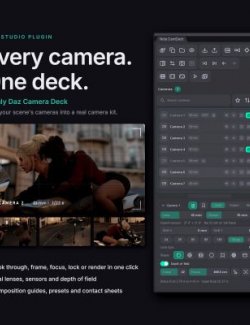
Blue Rift Camera Manager adds a fast camera workflow directly to the DAZ Studio viewport.
Features
- A camera icon is placed below the viewport navigation controls.
- One click creates a scene camera that matches the current viewport position, rotation, projection, focal length, focal distance, depth of field, and f-stop.
- A dockable Camera Manager pane lists every scene camera.
- Selecting a camera switches the active viewport to that camera.
- The selected camera exposes DAZ Studio's native property groups, including transforms, lens, depth of field, and display controls.
- Render width, height, aspect constraint, and viewport aspect-frame controls are available in the same pane.
- Camera display names can be changed from the pane.
- The overlay button is available in every viewport layout.
Usage
Create a camera from the viewport
1. Move and rotate the viewport until the composition is correct.
2. Click the camera icon below the viewport navigation controls.
3. A uniquely named scene camera is created at that exact view and becomes the active viewport camera.
The same command is also available from Create > Create Camera from View.
Open the Camera Manager pane
1. Open Window > Panes (Tabs).
2. Choose Camera Manager.
3. Dock the pane wherever you prefer.
Click a camera in the list to view through it. Its native DAZ Studio properties appear below the list.
Camera Manager panel overview
Cameras in Scene
Lists every camera stored in the current scene. Click a camera to select it and immediately switch the active viewport to that camera.
Create From View
Creates a new scene camera that matches the active viewport, including its position, rotation, projection, focal length, focal distance, depth of field, and f-stop.
View Through
Switches the active viewport to the camera currently selected in the list. You can also double-click a camera name to view through it.
Rename
Enter a new name for the selected camera and click Rename, or press Enter, to update its scene name.
Render Size (Scene)
- Width and Height set the output resolution in pixels.
- Constrain proportions preserves the current image aspect ratio when one dimension changes.
- Show aspect frame in viewport displays the render boundary while composing the shot.
These controls modify the scene-wide render settings and therefore apply to every camera in the scene.
Selected Camera Properties
Displays DAZ Studio's native property editor for the selected camera. Available groups include transforms, lens and focal controls, depth of field, camera display settings, and any additional properties supported by that camera.
Important note about render size
DAZ Studio stores render dimensions as scene-wide render settings rather than separate settings on each camera. The pane therefore shows render width and height alongside the selected camera controls, but changing them affects the scene's render settings.
Requirements
- DAZ Studio 4.24 or another compatible 64-bit DAZ Studio 4 build
- Windows 64-bit
Version
1.0.0.1